For Windows 10 users, Ucom gamepads are generally designed as plug-and-play
, meaning they often work immediately without manual driver installation. However, getting advanced features like vibration feedback
or compatibility with modern games usually requires a bit more effort. Core Features for Windows 10
Ucom controllers offer several technical features tailored for PC gaming: Plug-and-Play Design
: Supported across PC USB 2.0, 1.1, and 1.0 standards for quick setup. Dual Mode Control
: Most models feature both digital and analog modes, often including an LED display for status. Vibration Feedback
: Includes dual-shock vibration functionality for realistic in-game feeling. Ergonomics
: Designed with familiar layouts, non-slip handles, and responsive buttons (typically 11–12 fire buttons). Installation Guide
While Windows 10 often installs a generic driver automatically, follow these steps for a complete setup: HOW TO ENABLE VIBRATION ON GAMEPAD: 2017
Getting Ucom gamepads to work on Windows 10 can be tricky because these controllers are often older "DirectInput" devices, while modern games primarily use "XInput" (the standard for Xbox controllers). 1. Basic Setup & Vibration Drivers
Most Ucom controllers are plug-and-play for basic movement, but you may need specific drivers for vibration or to fix mapping issues where the right joystick acts like buttons.
Plug-and-Play Check: Connect the controller and search for "Set up USB game controllers" in your Windows search bar. Select your device and click Properties to test the buttons.
Legacy Drivers: If your controller came with a small mini-CD, run the setup.exe or install.exe found on it. If not, you can often find "Universal USB Joystick" or "Twin USB Gamepad" drivers online, which add the Vibration/Effect tab to your controller settings. 2. Making it Work with Modern Games (Emulation)
If your Ucom gamepad is recognized by Windows but doesn't work in games like Forza or Call of Duty, you need an emulator to make it "pretend" it is an Xbox controller.
x360ce (Xbox 360 Controller Emulator): This is the most common tool. It maps your generic Ucom buttons to Xbox 360 inputs.
Version 4.x is recommended as it creates a "Virtual Gamepad" that works with almost all modern titles.
XOutput: A newer alternative that converts DirectInput to XInput. It requires the ViGEmBus driver to function correctly. 3. Troubleshooting Common Issues
Controller Not Recognized: Go to Device Manager, find the "HID-compliant game controller," right-click it, and select Uninstall device. Unplug and replug the gamepad to let Windows reinstall the default driver.
Right Stick/Button Mapping Errors: If your right analog stick is triggering button presses (like A, B, X, Y), you must use an emulator like x360ce to remap those axes correctly.
Are you trying to get vibration to work, or is the game just not seeing the controller at all?
Here is some content related to "Ucom Gamepad Drivers for Windows 10":
Introduction
Are you a gamer who uses a Ucom gamepad to play games on your Windows 10 computer? If so, you may have encountered issues with your gamepad not being recognized by your computer or not functioning properly. This is often due to outdated or missing drivers. In this article, we will guide you on how to download and install the latest Ucom gamepad drivers for Windows 10.
What are Ucom Gamepad Drivers?
Ucom gamepad drivers are software programs that allow your Windows 10 computer to communicate with your Ucom gamepad. These drivers translate the inputs from your gamepad into a language that your computer can understand, enabling you to use your gamepad to play games.
Why Do I Need to Update My Ucom Gamepad Drivers?
Updating your Ucom gamepad drivers is essential to ensure that your gamepad functions properly and is compatible with the latest games and software. Outdated drivers can cause issues such as:
- Gamepad not being recognized by your computer
- Buttons not working correctly
- Analog sticks not responding
- Vibration not working
How to Download and Install Ucom Gamepad Drivers for Windows 10
To download and install the latest Ucom gamepad drivers for Windows 10, follow these steps:
- Visit the Official Ucom Website: Go to the official Ucom website and navigate to the support or downloads section.
- Search for Drivers: Search for the latest drivers for your Ucom gamepad model.
- Select Your Operating System: Select Windows 10 as your operating system.
- Download the Driver: Download the driver file (usually a .zip or .exe file).
- Extract the Files: Extract the files to a folder on your computer.
- Run the Installer: Run the installer file (usually a .exe file) and follow the on-screen instructions to install the drivers.
Alternative Method: Using a Driver Update Tool
If you don't have the time or patience to manually search for and download the latest Ucom gamepad drivers, you can use a driver update tool. These tools scan your computer for outdated drivers and update them automatically.
Some popular driver update tools include:
- Driver Talent
- Driver Easy
- Driver Booster
Troubleshooting Tips
If you encounter issues with your Ucom gamepad drivers, try the following troubleshooting tips:
- Restart your computer
- Uninstall and reinstall the drivers
- Update your Windows 10 operating system
- Disable and re-enable the gamepad in Device Manager
Conclusion
Updating your Ucom gamepad drivers is essential to ensure that your gamepad functions properly and is compatible with the latest games and software. By following the steps outlined in this article, you can easily download and install the latest Ucom gamepad drivers for Windows 10. If you encounter any issues, try the troubleshooting tips provided. Happy gaming!
Here’s a helpful content piece for finding and installing UCOM gamepad drivers on Windows 10, structured for clarity and ease of use.
Part 1: Understanding UCOM Gamepads and Windows 10 Driver Architecture
Before downloading random .exe files from sketchy websites, it’s crucial to understand why UCOM controllers need special attention.
UCOM is a generic brand. Unlike Sony or Microsoft, they do not maintain a massive, digitally signed driver database with Windows Update. Most UCOM gamepads use one of three underlying chipsets:
- DragonRise Inc. (USB 2.0 Gamepad) – The most common.
- SHANWAN (Android/PC Hybrid) – Recognized as an XInput device but often buggy.
- Generic HID (Human Interface Device) – Works natively but only as a DirectInput controller.
The Windows 10 Problem: Microsoft has shifted heavily toward XInput (the standard for Xbox controllers). Many UCOM pads are DirectInput legacy devices. Windows 10 recognizes them, but games released after 2015 may not map the buttons correctly. You don't necessarily need a "driver" for basic function—you need a correctly configured driver to translate DirectInput to XInput.
Issue 1: "USB Device Not Recognized"
- Cause: Damaged USB cable or port, or driver conflict.
- Fix:
- Uninstall the device in Device Manager (under "Universal Serial Bus controllers" or "Human Interface Devices").
- Unplug the controller and restart the PC.
- Replug into a different USB port.
3. Driver Availability and Architecture
3) Install/update drivers (safe order)
- Let Windows try first:
- Device Manager → Right-click device → Update driver → “Search automatically for drivers”.
- If Windows finds nothing, try uninstall + replug:
- Right-click device → Uninstall device (check “Delete the driver software for this device” if shown) → unplug → reboot → plug back in.
- If still not working, search for a model-specific INF/driver using the VID/PID. Only download drivers from a reputable source. If you install a third‑party driver, create a System Restore point first.
- If no vendor driver exists, use the generic Windows HID driver:
- In Device Manager → Update driver → “Browse my computer for drivers” → “Let me pick from a list of available drivers on my computer” → choose “USB Input Device” or “HID-compliant game controller”.
Part 10: Final Verdict – Are UCOM Gamepads Worth the Driver Hassle on Windows 10?
Yes, but only if you’re patient. UCOM gamepads are excellent budget controllers—typically $10–$20 with decent build quality. The main compromise is driver support. Unlike an official Xbox controller (plug-and-play in Windows 10), a UCOM pad requires 10–15 minutes of manual driver configuration.
However, once you install the correct UCOM gamepad drivers for Windows 10—whether via the manual Xbox 360 driver swap or x360ce—the controller functions identically to a first-party device. Vibration, analog triggers, and all buttons work. For retro gaming, emulation (RetroArch, PCSX2), and platformers, it’s a fantastic value.
Final advice: Bookmark this guide. Save the working driver INF files to a cloud folder. And if you ever upgrade to Windows 11, repeat the process with the same steps—they work identically.
3.1 Official Support
There is no centralized official support portal for UCOM brand drivers. The manufacturers generally rely on the Windows generic driver library.
UCOM Gamepad Drivers for Windows 10 – A Practical Review
Final Tips for Windows 10 Users
- Never install the driver from the mini-CD – it’s usually 32-bit and will BSOD.
- To remove the official driver cleanly: Use USBDeview to delete the device + driver package.
- For wireless models: Pair the dongle before installing any driver, not after.
Rating: ⭐⭐☆☆☆ (2/5) – Functional with patience, but outdated and unreliable compared to modern standards.
UCOM gamepads are generally plug-and-play devices for Windows 10, meaning basic button functions should work automatically using Windows' built-in generic USB joystick drivers. However, advanced features like vibration (force feedback) or compatibility with modern games (XInput) often require specific manual driver installations or third-party emulation. 1. Basic Setup & Driver Installation
For standard use, Windows 10 will attempt to install the necessary drivers as soon as you plug the device into a USB port.
Automatic Detection: Plug the controller in; if an LED turns on, Windows is likely installing the generic driver.
Manual Update: If it's not recognized, open Device Manager, find the gamepad under "Universal Serial Bus controllers" or "Human Interface Devices," right-click it, and select Update driver -> Search automatically for drivers.
Reinstalling: If the device is malfunctioning, right-click it in the Control Panel's "Devices and Printers", select Remove device, unplug it, and plug it back in to trigger a fresh driver installation. 2. Enabling Vibration (Force Feedback)
The generic Windows driver often lacks vibration support for UCOM controllers. To enable it, you may need a specific vibration driver:
Ucom Single PC USB Game Controller Pad - Adepta Technologies
Installing UCom Gamepad Drivers on Windows 10: A Comprehensive Guide
Are you a gamer who uses a UCom gamepad to play your favorite games on Windows 10? If so, you may have encountered issues with your gamepad not being recognized by your computer. This can be frustrating, especially if you're in the middle of a heated gaming session. The problem is likely due to outdated or missing UCom gamepad drivers. In this article, we'll show you how to install and update UCom gamepad drivers on Windows 10, ensuring that your gamepad is fully functional and ready to take on your gaming needs.
What are UCom Gamepad Drivers?
UCom gamepad drivers are software programs that allow your Windows 10 computer to communicate with your UCom gamepad. These drivers act as a bridge between your gamepad and your computer, enabling you to control your games with your gamepad. Without the proper drivers, your gamepad may not work as intended, or it may not work at all.
Why Do I Need to Update My UCom Gamepad Drivers?
There are several reasons why you may need to update your UCom gamepad drivers on Windows 10:
- Compatibility issues: Newer versions of Windows 10 may not be compatible with older gamepad drivers, leading to issues with your gamepad not being recognized.
- Bug fixes: Updating your drivers can fix bugs and glitches that may be causing issues with your gamepad.
- New features: Newer drivers may include new features and improvements that enhance your gaming experience.
- Security updates: Updating your drivers can ensure that your gamepad is secure and protected from potential vulnerabilities.
How to Download and Install UCom Gamepad Drivers on Windows 10
Downloading and installing UCom gamepad drivers on Windows 10 is a relatively straightforward process. Here are the steps:
- Visit the UCom website: Go to the UCom website and navigate to the support or downloads section.
- Search for drivers: Search for the latest UCom gamepad drivers for Windows 10.
- Download the drivers: Download the drivers that match your gamepad model and Windows 10 version.
- Run the installer: Run the installer and follow the on-screen instructions to install the drivers.
- Restart your computer: Restart your computer to ensure that the new drivers are installed and functioning properly.
Updating UCom Gamepad Drivers on Windows 10
If you already have UCom gamepad drivers installed on your Windows 10 computer, you may need to update them to ensure that they are compatible with the latest version of Windows 10. Here's how to update your drivers:
- Open Device Manager: Open the Device Manager on your Windows 10 computer.
- Locate your gamepad: Locate your UCom gamepad in the list of devices.
- Right-click and select Update driver: Right-click on your gamepad and select "Update driver".
- Search for updates: Windows 10 will search for updates and install any available drivers.
- Restart your computer: Restart your computer to ensure that the new drivers are installed and functioning properly.
Troubleshooting UCom Gamepad Driver Issues on Windows 10
If you're experiencing issues with your UCom gamepad drivers on Windows 10, here are some troubleshooting steps you can try:
- Uninstall and reinstall drivers: Uninstall the drivers and reinstall them to ensure that they are installed correctly.
- Update Windows 10: Ensure that your Windows 10 operating system is up to date, as newer versions may include bug fixes and improvements.
- Disable and re-enable your gamepad: Disable your gamepad and then re-enable it to see if it resolves the issue.
- Check for conflicts: Check for conflicts with other devices or software that may be causing issues with your gamepad.
Conclusion
Installing and updating UCom gamepad drivers on Windows 10 is essential to ensure that your gamepad is fully functional and ready to take on your gaming needs. By following the steps outlined in this article, you can easily download, install, and update your UCom gamepad drivers, ensuring that you have a seamless gaming experience. If you're experiencing issues with your gamepad, try the troubleshooting steps outlined above to resolve the problem.
Frequently Asked Questions
- Where can I download UCom gamepad drivers for Windows 10? You can download UCom gamepad drivers for Windows 10 from the UCom website or from the Microsoft Update Catalog website.
- How do I install UCom gamepad drivers on Windows 10? To install UCom gamepad drivers on Windows 10, download the drivers, run the installer, and follow the on-screen instructions.
- Why is my UCom gamepad not working on Windows 10? There may be several reasons why your UCom gamepad is not working on Windows 10, including outdated drivers, conflicts with other devices or software, or issues with your gamepad itself.
- Can I use a third-party driver updater to update my UCom gamepad drivers? While third-party driver updaters may claim to update your UCom gamepad drivers, it's recommended to download drivers from the official UCom website or Microsoft Update Catalog website to ensure that you get the latest and correct drivers.
Additional Resources
- UCom gamepad drivers for Windows 10: [insert link to UCom website]
- Microsoft Update Catalog: [insert link to Microsoft Update Catalog website]
- Windows 10 troubleshooting: [insert link to Microsoft support page]
Ucom gamepads are generic USB gaming devices that typically use standard plug-and-play drivers already built into Windows 10
. While basic functionality is usually automatic, advanced features like vibration often require specific third-party drivers or emulation software to bridge compatibility with modern games that prefer Xbox controller inputs. Installation & Basic Setup
For most users, Windows 10 will automatically detect and install a generic driver upon connection. Plug and Play : Connect the gamepad directly to a USB 2.0 port . Wait a few moments for Windows to recognize the device. Verify Recognition Windows key , type "game controller," and select Set up USB game controllers
Your device should appear as "USB Gamepad" or "Generic USB Joystick". Properties to test individual buttons and analog sticks. Troubleshooting : If it's not detected, try uninstalling the device from Device Manager
(under Human Interface Devices), then unplug and replug it to force a driver refresh. Vibration & Advanced Drivers
If vibration is not working, you may need a dedicated driver installer. Some legacy drivers available for Windows 10 include:
Getting your UCOM gamepad to work on Windows 10 is usually straightforward, as it is a "Plug and Play" device. While basic functions work automatically, you might need specific steps for vibration or modern game compatibility. 1. Initial Setup (Plug and Play)
In most cases, Windows 10 will automatically detect the UCOM controller and install a generic USB Gamepad driver.
Plug it in: Connect the USB cable. Wait for the notification "Setting up a device" to finish.
Check Detection: Press Win + R, type joy.cpl, and hit Enter.
If you see "Generic USB Joystick" or "USB Gamepad" with an OK status, the basic drivers are installed. 2. Enabling Vibration (Force Feedback)
Standard Windows drivers often lack vibration support for cheap generic gamepads. To enable it:
Install the Vibration Driver: Many UCOM controllers use the VID_0079 & PID_0006 hardware ID. You can find specialized force feedback drivers from sources like GitHub (Generic USB Gamepad Vibration).
Manual Install: If you have a driver folder, go to Device Manager, right-click the controller under "Human Interface Devices," select Update Driver, and choose "Browse my computer for drivers" to point to your folder. 3. Making it Work with Modern Games (XInput)
Most modern PC games require an "Xbox" (XInput) controller. UCOM gamepads typically use "DirectInput," which many new games won't recognize.





Ucom Gamepad - Drivers For Windows 10
For Windows 10 users, Ucom gamepads are generally designed as plug-and-play
, meaning they often work immediately without manual driver installation. However, getting advanced features like vibration feedback
or compatibility with modern games usually requires a bit more effort. Core Features for Windows 10
Ucom controllers offer several technical features tailored for PC gaming: Plug-and-Play Design
: Supported across PC USB 2.0, 1.1, and 1.0 standards for quick setup. Dual Mode Control
: Most models feature both digital and analog modes, often including an LED display for status. Vibration Feedback
: Includes dual-shock vibration functionality for realistic in-game feeling. Ergonomics
: Designed with familiar layouts, non-slip handles, and responsive buttons (typically 11–12 fire buttons). Installation Guide
While Windows 10 often installs a generic driver automatically, follow these steps for a complete setup: HOW TO ENABLE VIBRATION ON GAMEPAD: 2017
Getting Ucom gamepads to work on Windows 10 can be tricky because these controllers are often older "DirectInput" devices, while modern games primarily use "XInput" (the standard for Xbox controllers). 1. Basic Setup & Vibration Drivers
Most Ucom controllers are plug-and-play for basic movement, but you may need specific drivers for vibration or to fix mapping issues where the right joystick acts like buttons.
Plug-and-Play Check: Connect the controller and search for "Set up USB game controllers" in your Windows search bar. Select your device and click Properties to test the buttons.
Legacy Drivers: If your controller came with a small mini-CD, run the
setup.exeorinstall.exefound on it. If not, you can often find "Universal USB Joystick" or "Twin USB Gamepad" drivers online, which add the Vibration/Effect tab to your controller settings. 2. Making it Work with Modern Games (Emulation)If your Ucom gamepad is recognized by Windows but doesn't work in games like Forza or Call of Duty, you need an emulator to make it "pretend" it is an Xbox controller.
x360ce (Xbox 360 Controller Emulator): This is the most common tool. It maps your generic Ucom buttons to Xbox 360 inputs.
Version 4.x is recommended as it creates a "Virtual Gamepad" that works with almost all modern titles.
XOutput: A newer alternative that converts DirectInput to XInput. It requires the ViGEmBus driver to function correctly. 3. Troubleshooting Common Issues
Controller Not Recognized: Go to Device Manager, find the "HID-compliant game controller," right-click it, and select Uninstall device. Unplug and replug the gamepad to let Windows reinstall the default driver.
Right Stick/Button Mapping Errors: If your right analog stick is triggering button presses (like A, B, X, Y), you must use an emulator like x360ce to remap those axes correctly.
Are you trying to get vibration to work, or is the game just not seeing the controller at all?
Here is some content related to "Ucom Gamepad Drivers for Windows 10": ucom gamepad drivers for windows 10
Introduction
Are you a gamer who uses a Ucom gamepad to play games on your Windows 10 computer? If so, you may have encountered issues with your gamepad not being recognized by your computer or not functioning properly. This is often due to outdated or missing drivers. In this article, we will guide you on how to download and install the latest Ucom gamepad drivers for Windows 10.
What are Ucom Gamepad Drivers?
Ucom gamepad drivers are software programs that allow your Windows 10 computer to communicate with your Ucom gamepad. These drivers translate the inputs from your gamepad into a language that your computer can understand, enabling you to use your gamepad to play games.
Why Do I Need to Update My Ucom Gamepad Drivers?
Updating your Ucom gamepad drivers is essential to ensure that your gamepad functions properly and is compatible with the latest games and software. Outdated drivers can cause issues such as:
How to Download and Install Ucom Gamepad Drivers for Windows 10
To download and install the latest Ucom gamepad drivers for Windows 10, follow these steps:
Alternative Method: Using a Driver Update Tool
If you don't have the time or patience to manually search for and download the latest Ucom gamepad drivers, you can use a driver update tool. These tools scan your computer for outdated drivers and update them automatically.
Some popular driver update tools include:
Troubleshooting Tips
If you encounter issues with your Ucom gamepad drivers, try the following troubleshooting tips:
Conclusion
Updating your Ucom gamepad drivers is essential to ensure that your gamepad functions properly and is compatible with the latest games and software. By following the steps outlined in this article, you can easily download and install the latest Ucom gamepad drivers for Windows 10. If you encounter any issues, try the troubleshooting tips provided. Happy gaming!
Here’s a helpful content piece for finding and installing UCOM gamepad drivers on Windows 10, structured for clarity and ease of use.
Part 1: Understanding UCOM Gamepads and Windows 10 Driver Architecture
Before downloading random
.exefiles from sketchy websites, it’s crucial to understand why UCOM controllers need special attention.UCOM is a generic brand. Unlike Sony or Microsoft, they do not maintain a massive, digitally signed driver database with Windows Update. Most UCOM gamepads use one of three underlying chipsets:
The Windows 10 Problem: Microsoft has shifted heavily toward XInput (the standard for Xbox controllers). Many UCOM pads are DirectInput legacy devices. Windows 10 recognizes them, but games released after 2015 may not map the buttons correctly. You don't necessarily need a "driver" for basic function—you need a correctly configured driver to translate DirectInput to XInput.
Issue 1: "USB Device Not Recognized"
3. Driver Availability and Architecture
3) Install/update drivers (safe order)
Part 10: Final Verdict – Are UCOM Gamepads Worth the Driver Hassle on Windows 10?
Yes, but only if you’re patient. UCOM gamepads are excellent budget controllers—typically $10–$20 with decent build quality. The main compromise is driver support. Unlike an official Xbox controller (plug-and-play in Windows 10), a UCOM pad requires 10–15 minutes of manual driver configuration. For Windows 10 users, Ucom gamepads are generally
However, once you install the correct UCOM gamepad drivers for Windows 10—whether via the manual Xbox 360 driver swap or x360ce—the controller functions identically to a first-party device. Vibration, analog triggers, and all buttons work. For retro gaming, emulation (RetroArch, PCSX2), and platformers, it’s a fantastic value.
Final advice: Bookmark this guide. Save the working driver INF files to a cloud folder. And if you ever upgrade to Windows 11, repeat the process with the same steps—they work identically.
3.1 Official Support
There is no centralized official support portal for UCOM brand drivers. The manufacturers generally rely on the Windows generic driver library.
UCOM Gamepad Drivers for Windows 10 – A Practical Review
Final Tips for Windows 10 Users
Rating: ⭐⭐☆☆☆ (2/5) – Functional with patience, but outdated and unreliable compared to modern standards.
UCOM gamepads are generally plug-and-play devices for Windows 10, meaning basic button functions should work automatically using Windows' built-in generic USB joystick drivers. However, advanced features like vibration (force feedback) or compatibility with modern games (XInput) often require specific manual driver installations or third-party emulation. 1. Basic Setup & Driver Installation
For standard use, Windows 10 will attempt to install the necessary drivers as soon as you plug the device into a USB port.
Automatic Detection: Plug the controller in; if an LED turns on, Windows is likely installing the generic driver.
Manual Update: If it's not recognized, open Device Manager, find the gamepad under "Universal Serial Bus controllers" or "Human Interface Devices," right-click it, and select Update driver -> Search automatically for drivers.
Reinstalling: If the device is malfunctioning, right-click it in the Control Panel's "Devices and Printers", select Remove device, unplug it, and plug it back in to trigger a fresh driver installation. 2. Enabling Vibration (Force Feedback)
The generic Windows driver often lacks vibration support for UCOM controllers. To enable it, you may need a specific vibration driver:
Ucom Single PC USB Game Controller Pad - Adepta Technologies
Installing UCom Gamepad Drivers on Windows 10: A Comprehensive Guide
Are you a gamer who uses a UCom gamepad to play your favorite games on Windows 10? If so, you may have encountered issues with your gamepad not being recognized by your computer. This can be frustrating, especially if you're in the middle of a heated gaming session. The problem is likely due to outdated or missing UCom gamepad drivers. In this article, we'll show you how to install and update UCom gamepad drivers on Windows 10, ensuring that your gamepad is fully functional and ready to take on your gaming needs.
What are UCom Gamepad Drivers?
UCom gamepad drivers are software programs that allow your Windows 10 computer to communicate with your UCom gamepad. These drivers act as a bridge between your gamepad and your computer, enabling you to control your games with your gamepad. Without the proper drivers, your gamepad may not work as intended, or it may not work at all.
Why Do I Need to Update My UCom Gamepad Drivers?
There are several reasons why you may need to update your UCom gamepad drivers on Windows 10:
How to Download and Install UCom Gamepad Drivers on Windows 10
Downloading and installing UCom gamepad drivers on Windows 10 is a relatively straightforward process. Here are the steps:
Updating UCom Gamepad Drivers on Windows 10 Gamepad not being recognized by your computer Buttons
If you already have UCom gamepad drivers installed on your Windows 10 computer, you may need to update them to ensure that they are compatible with the latest version of Windows 10. Here's how to update your drivers:
Troubleshooting UCom Gamepad Driver Issues on Windows 10
If you're experiencing issues with your UCom gamepad drivers on Windows 10, here are some troubleshooting steps you can try:
Conclusion
Installing and updating UCom gamepad drivers on Windows 10 is essential to ensure that your gamepad is fully functional and ready to take on your gaming needs. By following the steps outlined in this article, you can easily download, install, and update your UCom gamepad drivers, ensuring that you have a seamless gaming experience. If you're experiencing issues with your gamepad, try the troubleshooting steps outlined above to resolve the problem.
Frequently Asked Questions
Additional Resources
Ucom gamepads are generic USB gaming devices that typically use standard plug-and-play drivers already built into Windows 10
. While basic functionality is usually automatic, advanced features like vibration often require specific third-party drivers or emulation software to bridge compatibility with modern games that prefer Xbox controller inputs. Installation & Basic Setup
For most users, Windows 10 will automatically detect and install a generic driver upon connection. Plug and Play : Connect the gamepad directly to a USB 2.0 port . Wait a few moments for Windows to recognize the device. Verify Recognition Windows key , type "game controller," and select Set up USB game controllers
Your device should appear as "USB Gamepad" or "Generic USB Joystick". Properties to test individual buttons and analog sticks. Troubleshooting : If it's not detected, try uninstalling the device from Device Manager
(under Human Interface Devices), then unplug and replug it to force a driver refresh. Vibration & Advanced Drivers
If vibration is not working, you may need a dedicated driver installer. Some legacy drivers available for Windows 10 include:
Getting your UCOM gamepad to work on Windows 10 is usually straightforward, as it is a "Plug and Play" device. While basic functions work automatically, you might need specific steps for vibration or modern game compatibility. 1. Initial Setup (Plug and Play)
In most cases, Windows 10 will automatically detect the UCOM controller and install a generic USB Gamepad driver.
Plug it in: Connect the USB cable. Wait for the notification "Setting up a device" to finish.
Check Detection: Press
Win + R, typejoy.cpl, and hit Enter.If you see "Generic USB Joystick" or "USB Gamepad" with an OK status, the basic drivers are installed. 2. Enabling Vibration (Force Feedback)
Standard Windows drivers often lack vibration support for cheap generic gamepads. To enable it:
Install the Vibration Driver: Many UCOM controllers use the VID_0079 & PID_0006 hardware ID. You can find specialized force feedback drivers from sources like GitHub (Generic USB Gamepad Vibration).
Manual Install: If you have a driver folder, go to Device Manager, right-click the controller under "Human Interface Devices," select Update Driver, and choose "Browse my computer for drivers" to point to your folder. 3. Making it Work with Modern Games (XInput)
Most modern PC games require an "Xbox" (XInput) controller. UCOM gamepads typically use "DirectInput," which many new games won't recognize.
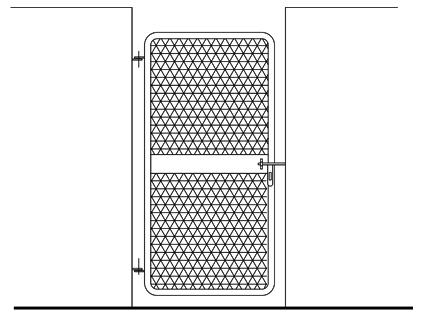
I would just like to know what are the welding symbols used in this drawing or in the plan and also what are the joints configuration used.
This is a die-cast aluminum gate. There are no welding symbols.